
Blender
Sculpting
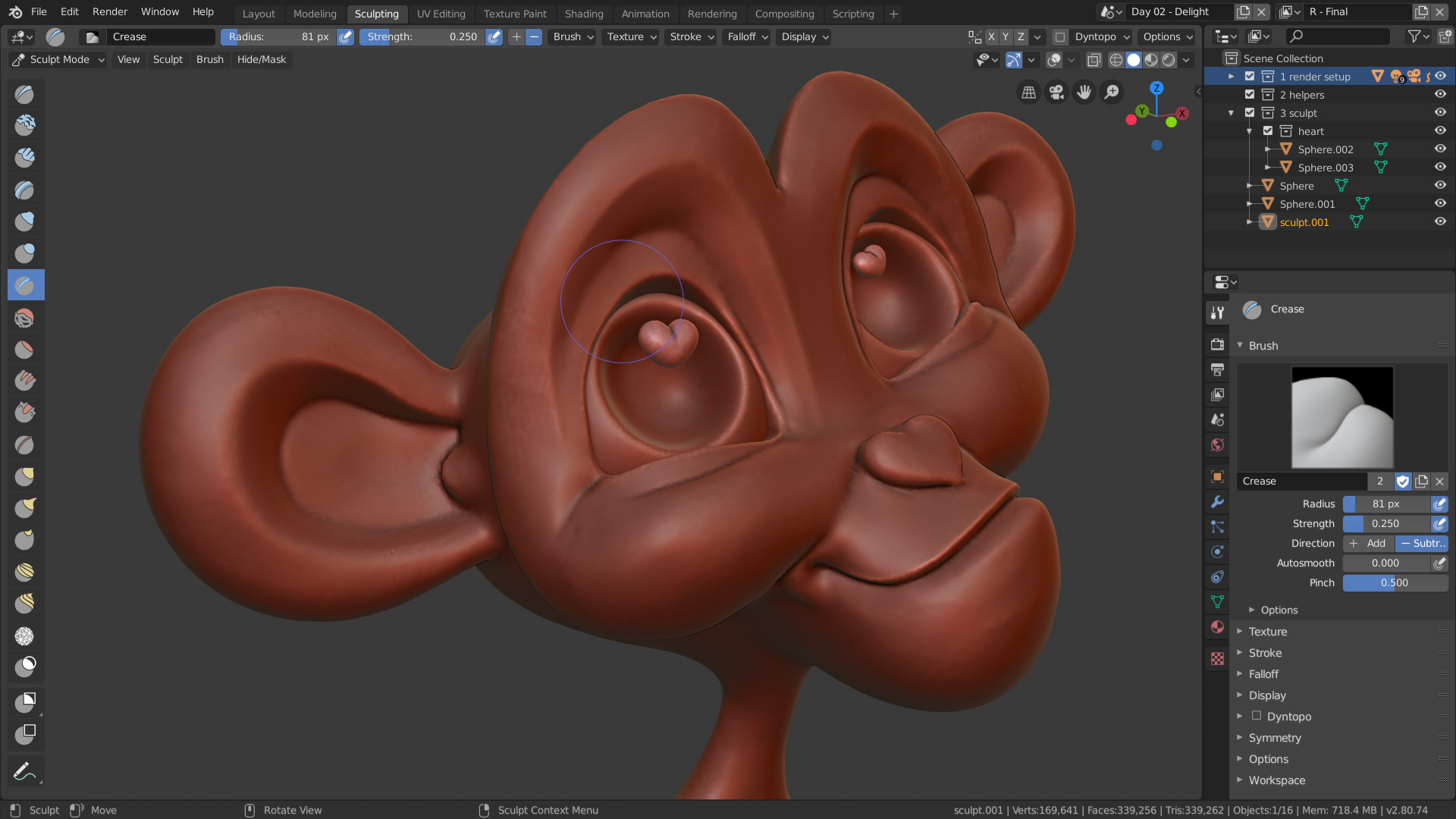
If modeling in Blender is like working with building blocks (extrude edges, connect vertices, build things piece by piece), sculpting is like working with real clay — you push, pull, smooth, and pinch until the shape looks right.
The difference matters:
| Approach | Like... | Best for |
|---|---|---|
| Box modeling | Building with LEGO bricks | Hard surfaces — chairs, robots, buildings |
| Sculpting | Molding clay with your hands | Organic shapes — characters, creatures, terrain |
With box modeling you're thinking about vertex counts, edge loops, and topology. With sculpting you just sculpt — the computer figures out the geometry for you. It's much more intuitive for beginners.
Sculpt Mode
Select any object and change the mode from Object Mode to Sculpt Mode in the top-left dropdown (or press Ctrl + Tab). Your object turns into a lump of clay.
If you don't have a detailed object to sculpt on, just add a mesh with lots of geometry — sculpting needs geometry to push around:
Shift + A → Mesh → UV Sphere
Then right-click it and choose Shade Smooth so you're not sculpting a faceted ball.
Quick tip: In the right panel (the little red circle tab — Active Tool), turn on Dyntopo (Dynamic Topology). This adds geometry as you sculpt so you can make fine details without running out of polygons. We'll come back to this.
the brushes you'll actually use
Blender comes with a ton of sculpting brushes. You don't need all of them. Here are the ones I actually use:
| Brush | What it does |
|---|---|
| Draw | Pushes or pulls the surface (your basic "make a dent or bump" brush) |
| Clay Strips | Adds flat, rectangular slabs of clay — great for building up forms |
| Smooth | Softens jagged areas — use this constantly |
| Crease | Makes sharp lines and wrinkles |
| Inflate | Puffs the surface outward (think: fat cheeks, muscles) |
| Grab | Pulls entire sections of mesh around — great for roughing out a shape |
| Mask | Protects areas from being sculpted (like painter's tape) |
Switch brushes with Shift + A (or click the brush icon in the top toolbar).
brush shortcuts
- F — change brush size (drag mouse)
- Shift + F — change brush strength
- Ctrl — invert the brush (Draw becomes Scrape, etc.)
- Shift — temporarily switch to Smooth
- X — toggle symmetry (sculpt both sides at once — essential for faces/characters)
Dyntopo — the magic button
Find the Dyntopo checkbox in the top-right of the 3D viewport (the red circle tab). Turn it on.
Normally Blender has a fixed number of vertices. Dyntopo adds vertices on the fly as you sculpt — so you can have a low-poly base mesh, sculpt a nose, and Blender automatically adds detail only where you need it.
Dyntopo = "I'll add polygons when and where you need them"
Three settings matter:
- Detail Size — how small the new polygons are. Smaller = more detail = slower. Start with something like
10pixels. - Detail Method — keep it on Relative Detail for now.
- Optimize — leave it on.
When you're roughing out a shape, use a large Detail Size. When you're adding fine wrinkles, drop it down.
a quick example — sculpt a rock (60 seconds)
- Shift + A → Mesh → UV Sphere
- Right-click → Shade Smooth
- Switch to Sculpt Mode
- Turn on Dyntopo
- Pick the Grab brush, grab a section and pull it out into a jagged shape
- Switch to Clay Strips, build up some ridges
- Shift to smooth out the really sharp spots
- Use Crease to add cracks
- Done. It's a rock.
You just made something that would take forever with box modeling.
a more realistic example — sculpt a face (the 5-minute head)
- Start with a UV Sphere (the head base)
- Sculpt Mode → Dyntopo ON
- Grab brush → pull the front into a snout/face shape
- Clay Strips → build up cheekbones and brow ridge
- Crease → carve eye sockets and a mouth line
- Draw (inverted with Ctrl) → push in the eye sockets
- Smooth → soften everything until it doesn't look like a potato
- Grab → pull ears out from the sides
In 5 minutes you'll have something that looks vaguely human. In 20 minutes you might have something decent. Sculpting is a skill — your first head will look like a potato with eyes. That's normal.
remeshing for export
When you're done sculpting, you probably want to export the model to Three.js. But Dyntopo leaves a messy, uneven topology — thousands of polygons in some spots, barely any in others.
You need to remesh it into a clean, even surface before exporting.
- Go to the Properties panel → the green triangle tab (Modifiers)
- Add a Remesh modifier
- Set Voxel Size to something like
0.05(smaller = more detail) - Click Apply
Now your sculpt has clean, even geometry. Export it as GLB using the same settings from the first blender post post.
can you animate a sculpted model?
Sort of. A sculpted model with Dyntopo has millions of polygons — too heavy for real-time animation. The typical pipeline is:
- Sculpt the high-detail version (the "high poly")
- Bake the detail onto a normal map
- Apply the normal map to a simpler version (the "low poly")
- Export the low poly to Three.js
That's an advanced topic, but it's good to know it exists. For now, just sculpt and admire your work in Blender.
common problems and fixes
my brush isn't doing anything
You might have a Mask active. Press Alt + M to clear masks. Or you might be in Object Mode — switch to Sculpt Mode.
my sculpt looks like a bunch of blocks
Turn on Shade Smooth (right-click the object in Object Mode). Also check your Dyntopo Detail Size — it might be too high.
my computer is slow / laggy
Your mesh has too many polygons. Either:
- Increase Dyntopo Detail Size (bigger number = fewer polygons)
- Add a Decimate modifier to reduce polygon count
- Work on a simpler base mesh
my sculpt has weird pinch marks
You're using too much Crease or Draw without smoothing enough in between. Sculpt in layers — rough shape first, then details, smoothing as you go.
can I sculpt on a model I already made?
Yes. Select any mesh, enter Sculpt Mode, and turn on Dyntopo. If the mesh is too low-poly (like a box-modeled chair), Dyntopo will add geometry as you sculpt.
what's next?
Sculpting is a deep rabbit hole — people spend years learning anatomy just to sculpt better faces. But you don't need to be a master to have fun with it. Being able to rough out a shape in 5 minutes instead of an hour of box modeling is the real win.
Future posts could cover:
- UV unwrapping — so you can paint textures onto your sculpt
- Retopology — making a clean low-poly version of a sculpt for animation
- Multiresolution sculpting — sculpting at multiple detail levels without Dyntopo
- Texture painting — painting directly onto your sculpt inside Blender
But for now: grab a sphere, turn on Dyntopo, and push some clay around. You'll make something ugly and that's fine — every good 3D artist has a folder full of potato heads.