Post Processing
Think of post processing like putting a filter on a photo after you've already taken it. In Three.js, you first render your 3D scene (your models, lights, camera), and then you apply effects like bloom, blur, or color grading to the final image — just like adding a VSCO or Instagram filter after snapping the picture.
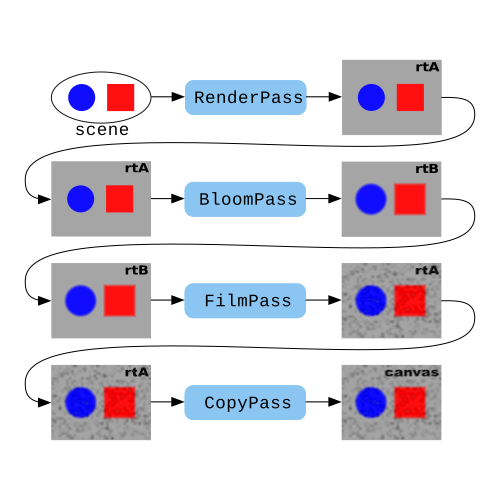
Imagine an assembly line:
- Scene Renderer takes a picture of your 3D world → sends it to
- EffectComposer (the foreman) → who passes it through
- Passes (each workstation adds an effect) → until
- The final image shows up on screen.
basic setup
Before you can use any effects, you need to swap out Three.js's default render loop for an EffectComposer:
import { EffectComposer } from 'three/examples/jsm/postprocessing/EffectComposer.js';
import { RenderPass } from 'three/examples/jsm/postprocessing/RenderPass.js';
import { UnrealBloomPass } from 'three/examples/jsm/postprocessing/UnrealBloomPass.js';

// 1. create the composer and add a RenderPass (always the first pass)
const composer = new EffectComposer(renderer);
composer.addPass(new RenderPass(scene, camera));

// 2. add effects
const bloomPass = new UnrealBloomPass(
    new THREE.Vector2(window.innerWidth, window.innerHeight), // resolution
    0.5, // strength (0 = off, 1 = strong glow)
    0.2, // radius (how far the glow spreads)
    0.1, // threshold (only bright things glow)
);
composer.addPass(bloomPass);

// 3. replace renderer.render(scene, camera) with composer.render()
function animate() {
    requestAnimationFrame(animate);
    composer.render(); // -- this runs all passes in order
}
animate();
what's a RenderPass? It's a pass that just renders the scene normally — no effect added yet. It's always the first pass so the composer has something to work with.
bloom (grow)
Makes bright parts of your scene glow, like a lightsaber or a neon sign:
import { UnrealBloomPass } from 'three/examples/jsm/postprocessing/UnrealBloomPass.js';

const bloomPass = new UnrealBloomPass(resolution, 0.3, 0.5, 0.1);
composer.addPass(bloomPass);
vignette (dark corners)
Draws attention to the center by darkening the edges:
import { ShaderPass } from 'three/examples/jsm/postprocessing/ShaderPass.js';
import { VignetteShader } from 'three/examples/jsm/shaders/VignetteShader.js';

const vignettePass = new ShaderPass(VignetteShader);
composer.addPass(vignettePass);
film grain
Adds a vintage, gritty look by overlaying noise:
import { FilmPass } from 'three/examples/jsm/postprocessing/FilmPass.js';

const filmPass = new FilmPass(
    0.35, // noise intensity
    0.5, // scanline intensity
    648, // scanline count
    false,
); // colorize?
composer.addPass(filmPass);
hue/saturation/brightness
Adjust colors like in a photo editor:
import { ShaderPass } from 'three/examples/jsm/postprocessing/ShaderPass.js';
import { HueSaturationShader } from 'three/examples/jsm/shaders/HueSaturationShader.js';

const colorPass = new ShaderPass(HueSaturationShader);
colorPass.uniforms['hue'].value = 0.1; // shift hue
colorPass.uniforms['saturation'].value = 0.5; // increase saturation
composer.addPass(colorPass);
dot screen (comic book effect)
Makes the scene look like it's printed in a comic book with dots:
import { DotScreenPass } from 'three/examples/jsm/postprocessing/DotScreenPass.js';

const dotPass = new DotScreenPass();
dotPass.uniforms['angle'].value = 0.5; // rotation of the dot pattern
dotPass.uniforms['scale'].value = 4; // size of the dots
composer.addPass(dotPass);
chain multiple effects
Order matters — each pass feeds into the next:
const composer = new EffectComposer(renderer);
composer.addPass(new RenderPass(scene, camera));
composer.addPass(bloomPass); // 1. glow
composer.addPass(vignettePass); // 2. darken corners on top of glow
composer.addPass(filmPass); // 3. add grain on top of that
Not every pass needs to run every frame, you can toggle them: bloomPass.enabled = false; vignettePass.enabled = true;